
Want to know how many people are checking out your Careers Page? You can add custom tracking code -- like a Google Analytics snippet -- directly in your Applicant Tracking System (ATS) settings to start gathering that data. Here is how to set it up.
Before You Begin
To use Google Analytics tracking, you will need a tracking code snippet (called a "G-tag") from your Google Analytics account. In GA4, you can find this under Admin > Data Streams > [your stream] > View tag instructions. Copy the full script tag -- you will paste it into the steps below.
Note: Google Analytics setup and configuration are managed outside of the Applicant Tracking System (ATS). If you need help generating your tracking code, refer to Google's Analytics Help Center.
Step 1: Navigate to Your Career Page Settings
- From your dashboard, open the Main Menu (the three-line "hamburger" icon in the top corner).
- Select Account > Account Details.
- Scroll down to the Customize & Design section and click Career Page.
Step 2: Locate the Tracking Code Section
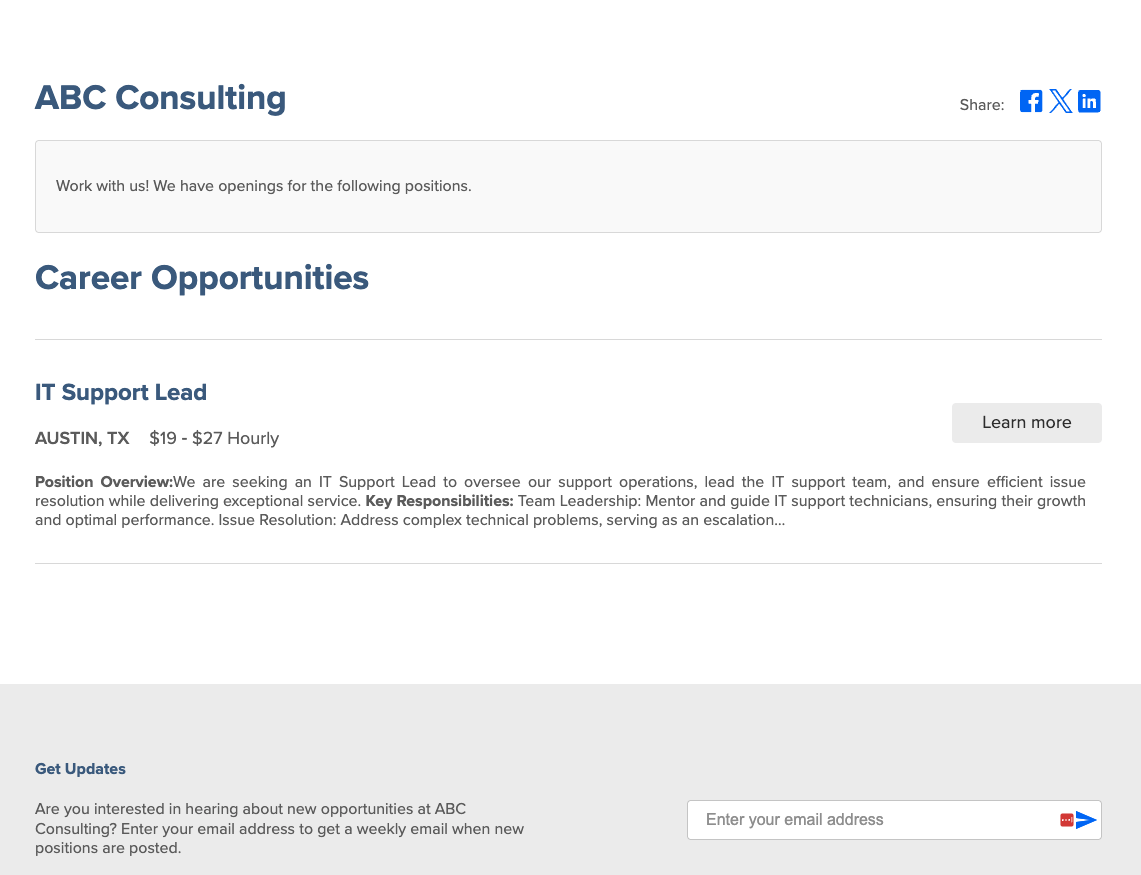
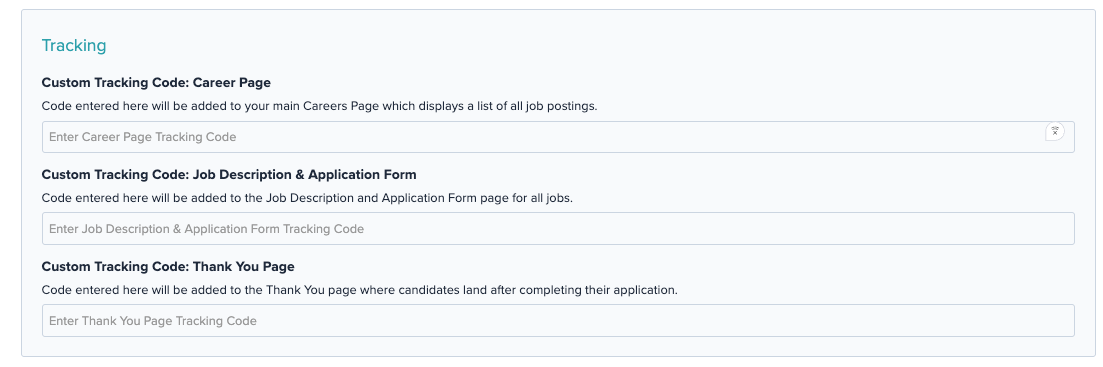
Once you are on the Career Page settings screen, scroll down until you find the Custom Tracking Code area. You will see three separate fields, each targeting a different page in your candidate's journey:
- Custom Tracking Code: Career Page: Code entered here will be added to your main Careers Page, where candidates see the full list of your open jobs.
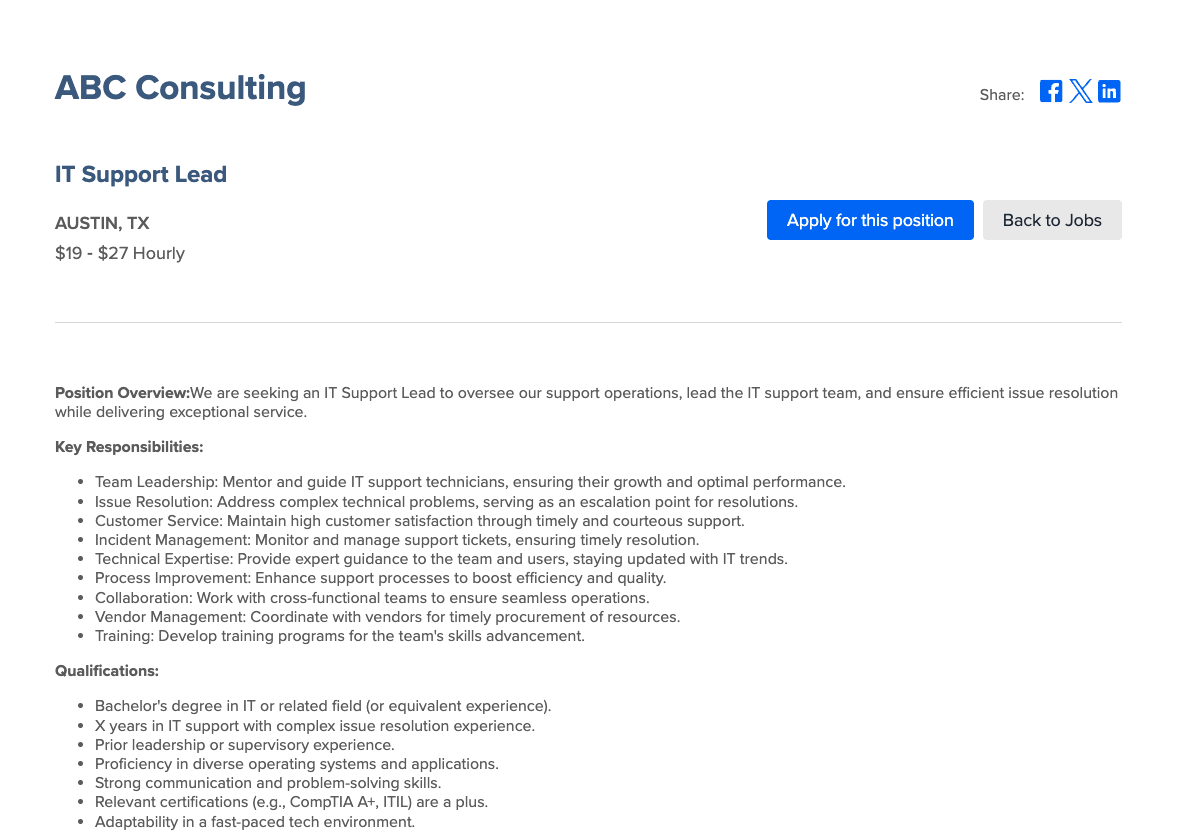
- Custom Tracking Code: Job Description & Application Form: Code entered here will be added to the Job Description and Application Form page for all jobs.
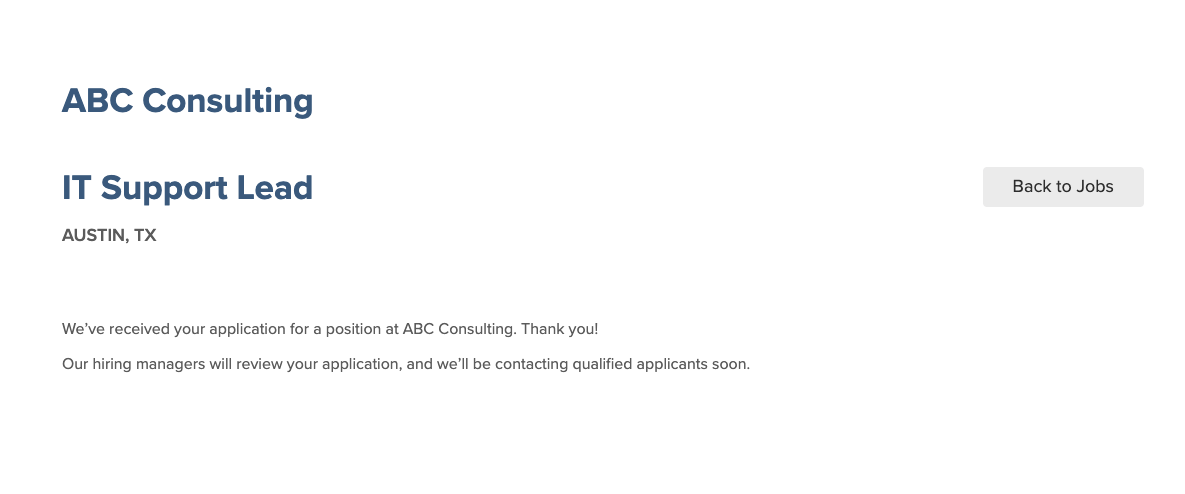
- Custom Tracking Code: Thank You Page: Code entered here will be added to the Thank You page that candidates land on after submitting their application.
Step 3: Add Your Tracking Code
Paste your tracking code snippet into whichever field(s) apply to the pages you want to track. You can populate one, two, or all three fields -- it is entirely up to you and what your analytics goals are.
Once your code is entered, save your changes.
Tip: If you want end-to-end visibility into your candidate funnel -- from first page view to completed application -- go ahead and add your tracking code to all three fields.
A Note on Tracking Results
After your tracking code is in place, visit your Google Analytics account to view traffic and behavior data for your Careers Page. Analytics data may take 24--48 hours to populate after initial setup.
Have questions about where to find your Career Page settings, or running into something unexpected? Our support team is here to help. Reach out to us at any time and we will be happy to take a look.
